Resume editor: Keep your resume
Write a new resume or copy your old one in, then change it as often as you need.
- Rename, reorder and hide sections
- Switch designs and keep your wording
- Reopen a resume saved in your account
- Duplicate a resume for a new role
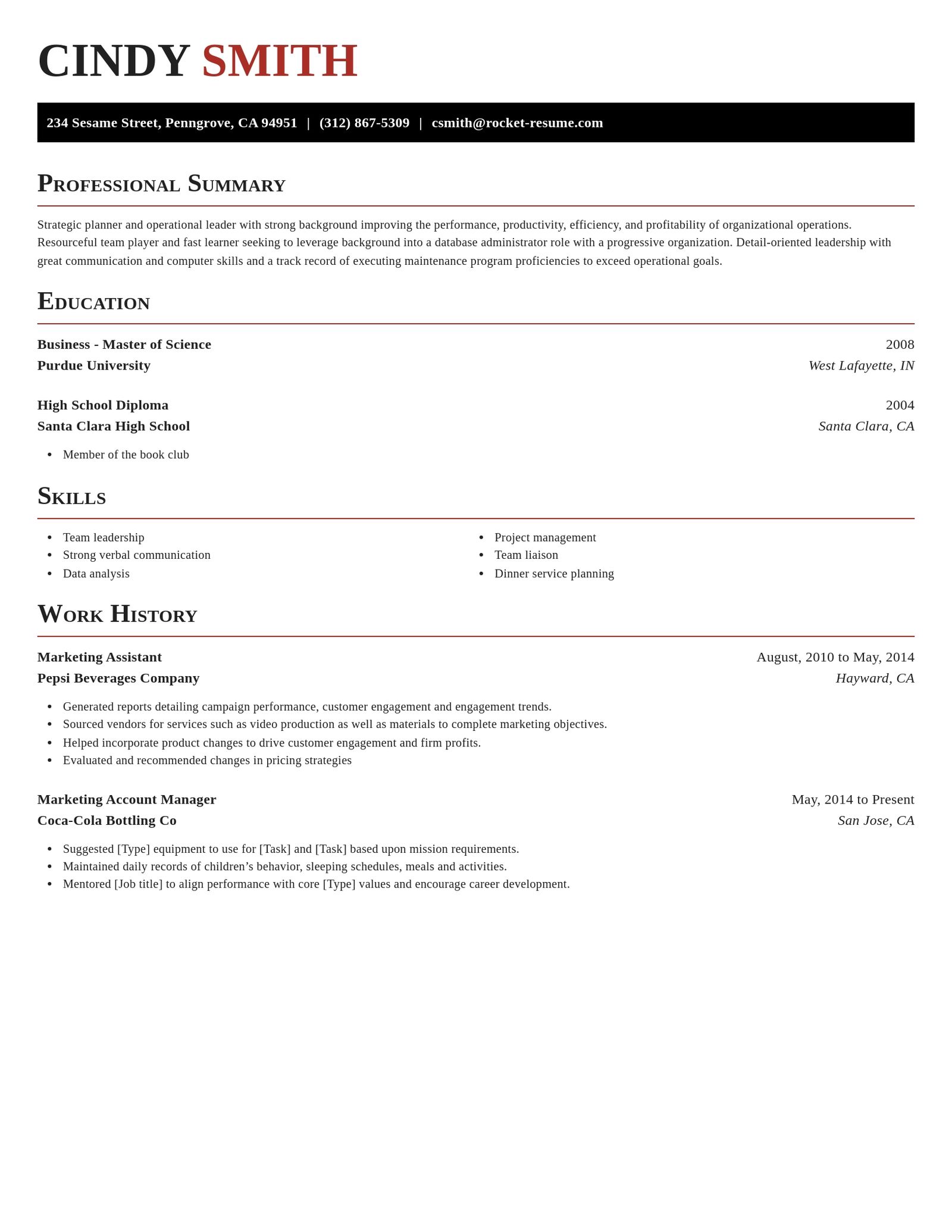
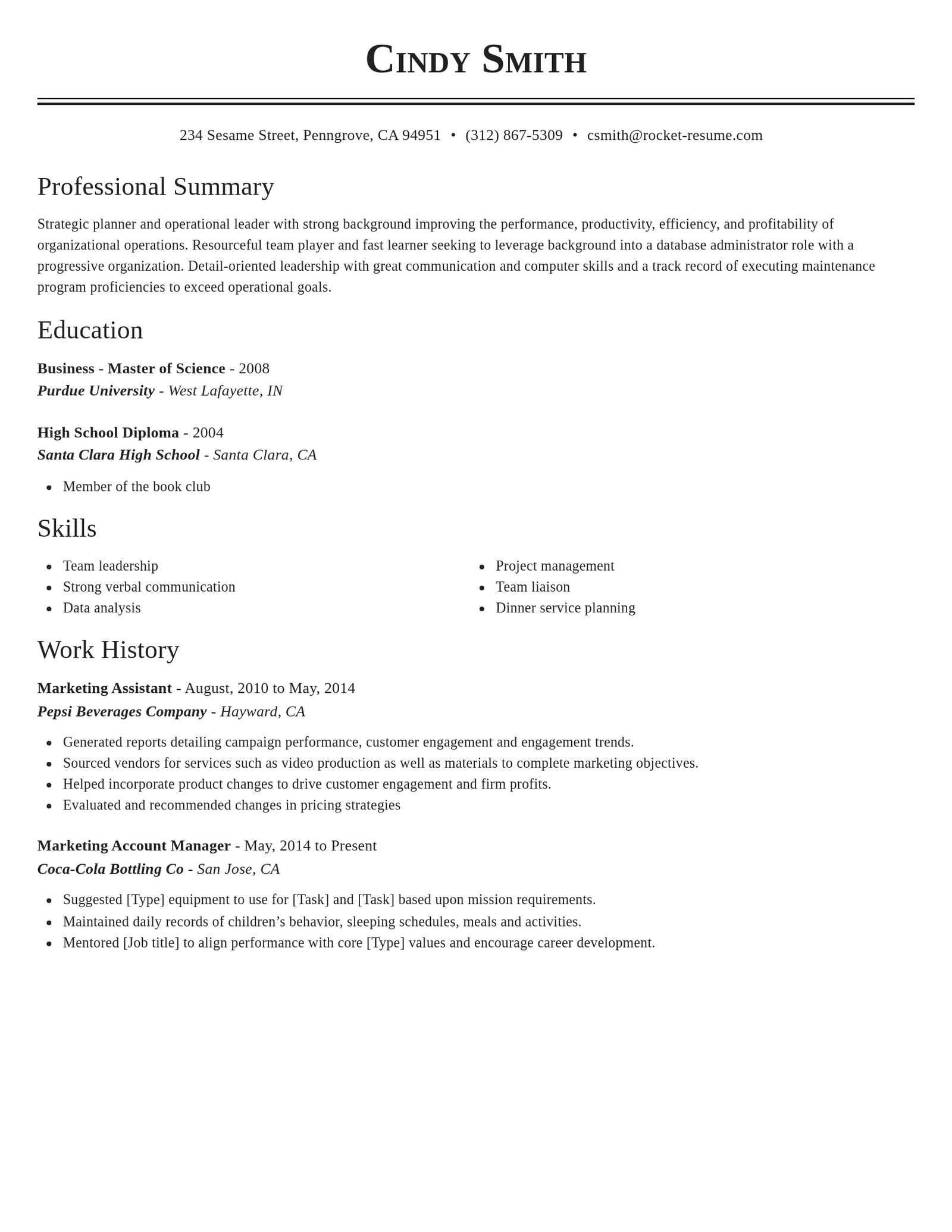
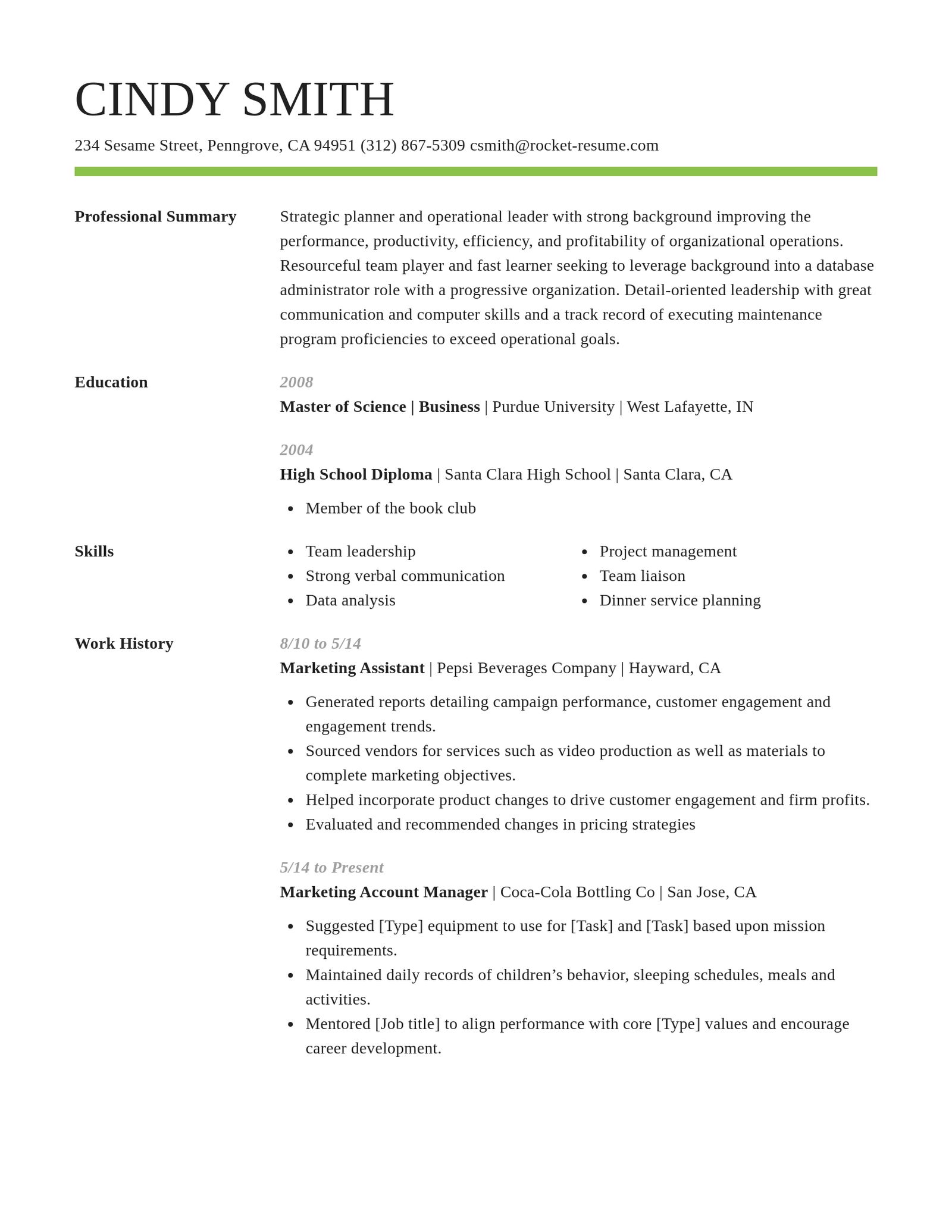
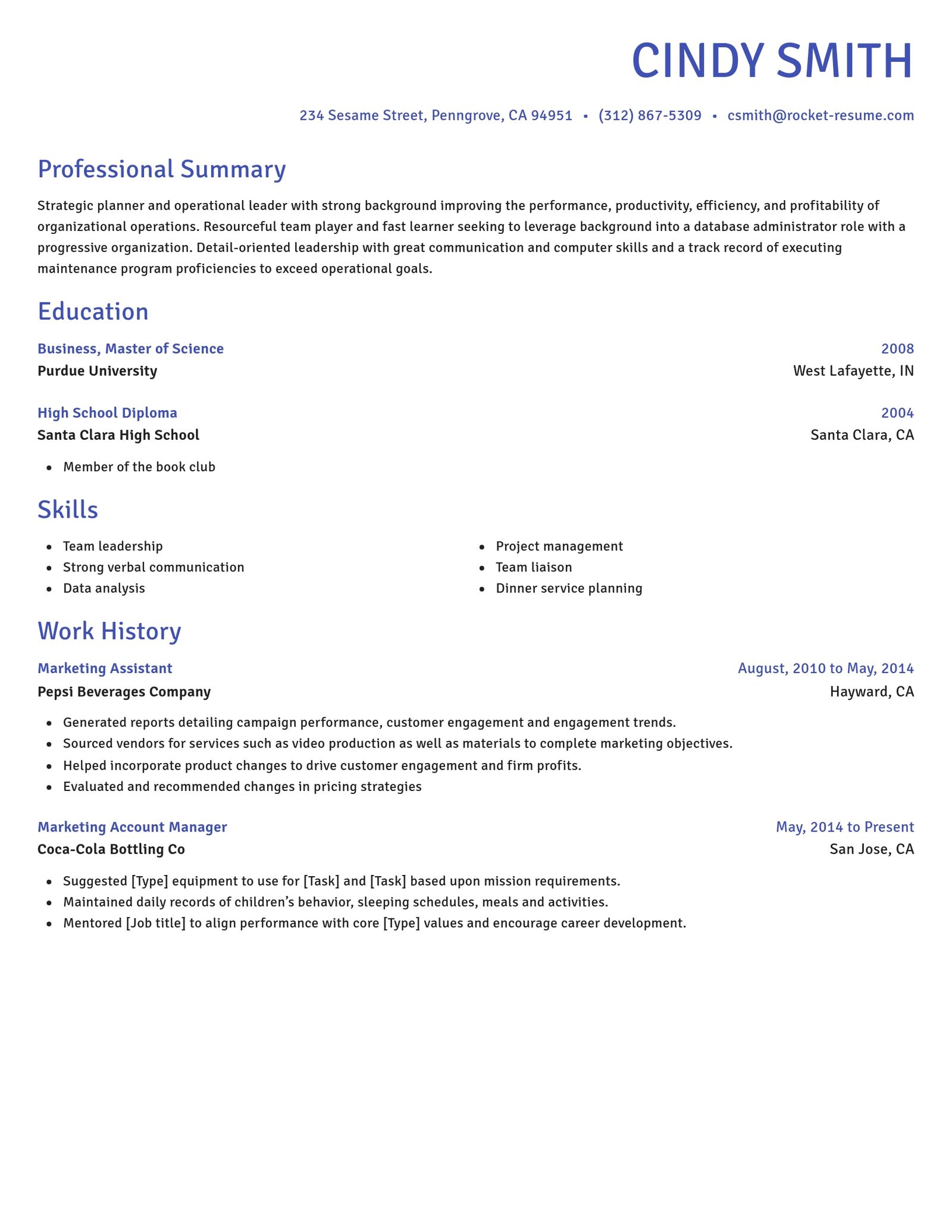
Editing a resume you already have
You can't upload a Word or PDF resume or import LinkedIn, but you can bring your resume over by hand.
- Copy it over, section by section
Keep your old resume open in another tab. After you pick a design, the editor shows each section in turn; paste or retype each one.
- Swap weak lines as you go
When you add a job, the editor suggests lines for that title. Swap one in if it fits better, and make its details true.
- Make small fixes in the original file
If you still have the Word or Google Docs file and only need to change a phone number, editing that file may be quicker.
- Start over instead
If your old resume is too out of date to copy, start a new one in the same editor.
What you can change in the resume editor
You can change each of these while you write your resume, and again whenever you reopen it.
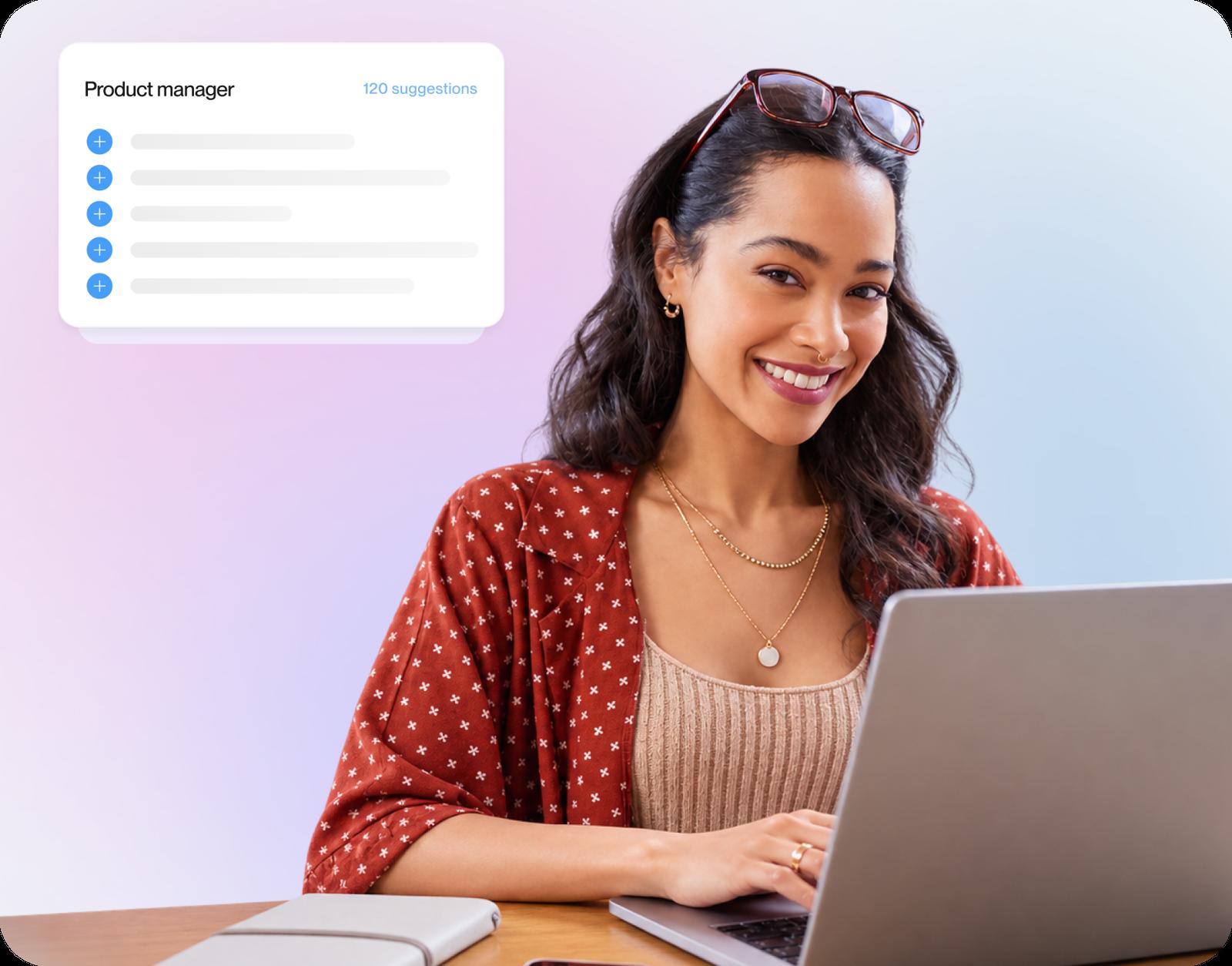
The wording of any line
Reword any line, including the suggested ones, until it says what you did in your own words.
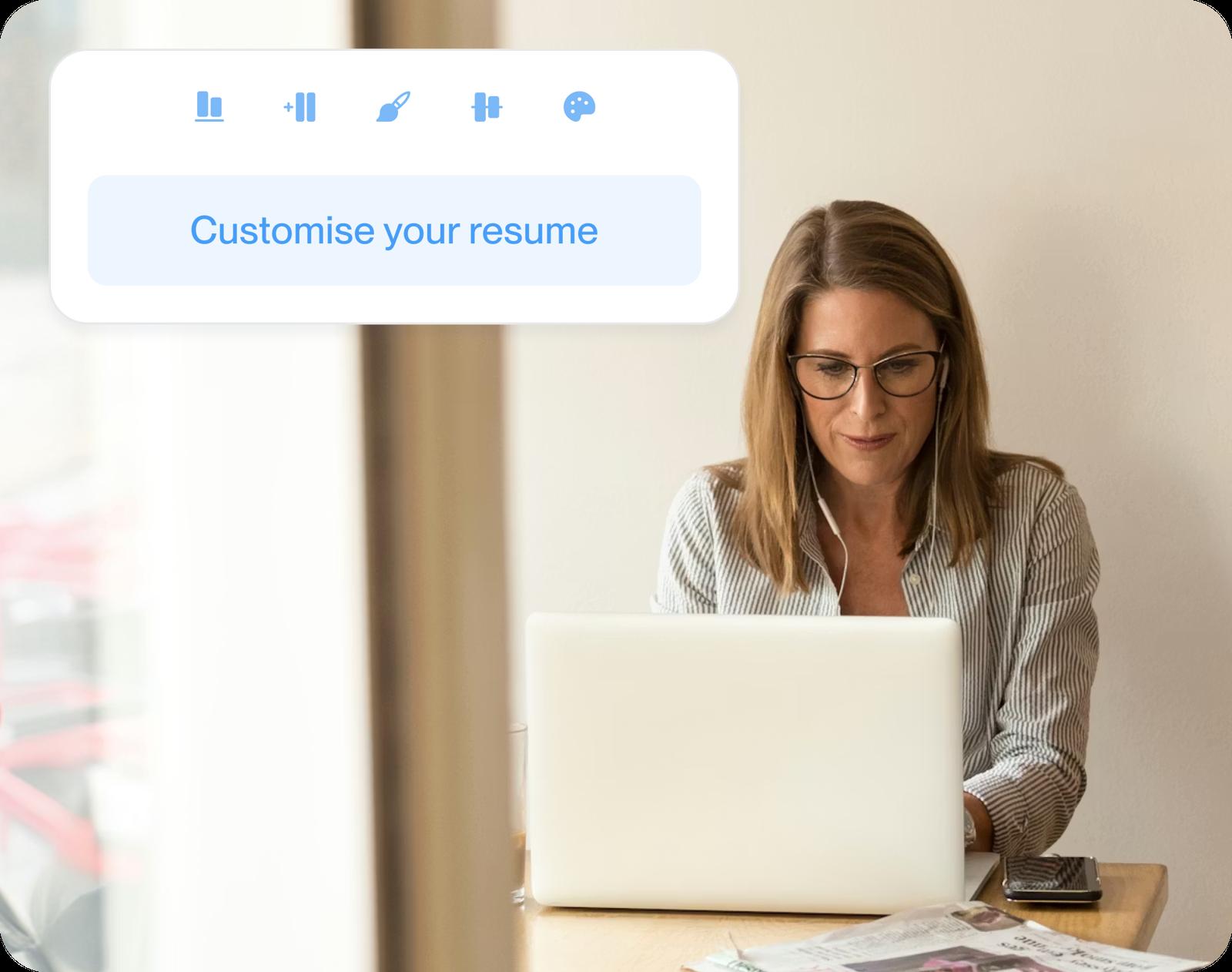
Your sections and their order
On the review step, rename a section or hide it for one application. Drag sections on the preview to reorder them.
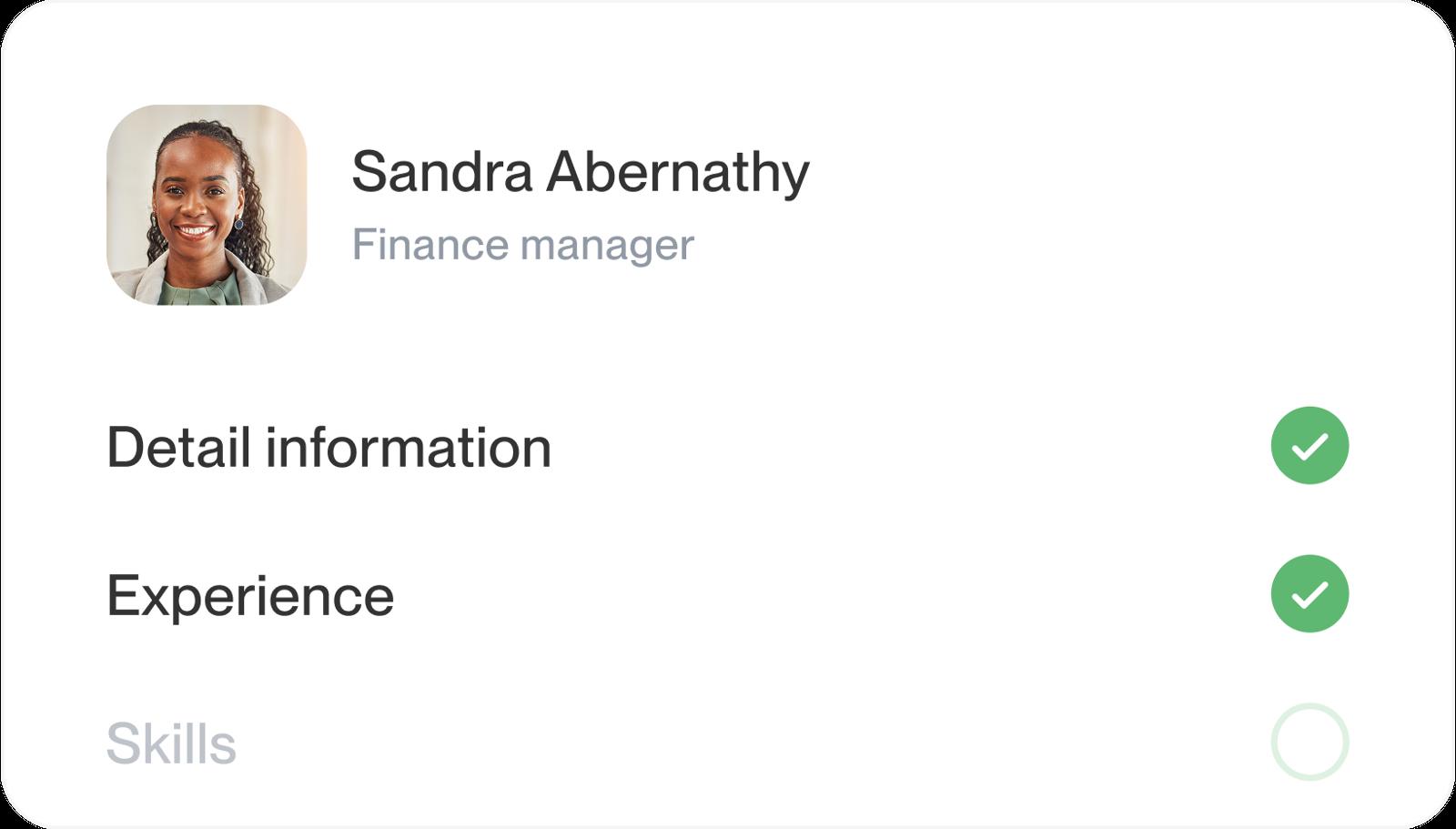
The optional sections you include
Use Add Section on the review step for certifications, accomplishments or affiliations. Add only the ones that fit the job.
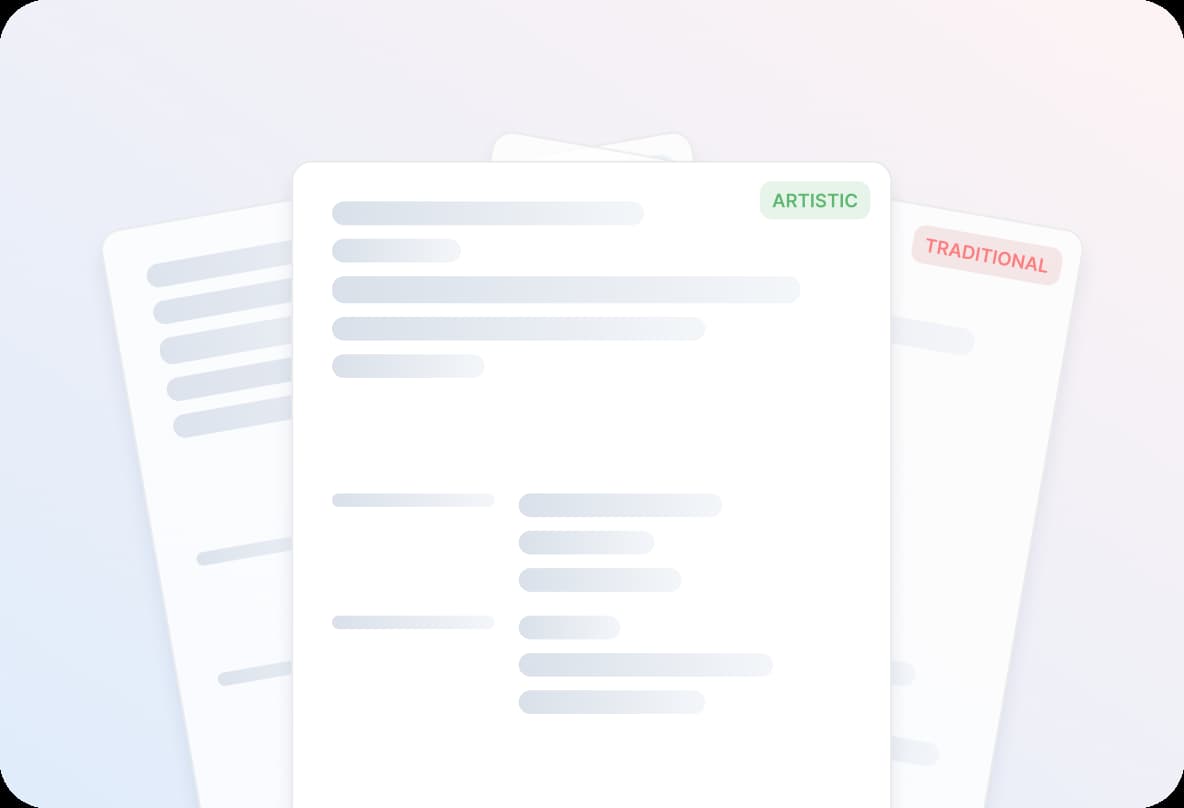
The design and its formatting
The Template setting switches to another design without losing your wording, and the Formatting setting adjusts the one you're using.
How to edit your resume for a new job
Work through these changes each time you apply somewhere new. For what each section should say, see how to write each section.
- Add your newest job
Put your latest job at the top of your work history with its start date. Add an end date to the job before it.
- Cut what no longer helps
Shorten or remove older jobs that don't relate to the role. Hide a section that doesn't fit instead of deleting it.
- Tailor your skills and summary to the posting
Move skills the posting asks for near the top of your list, then rewrite the first line of your summary for this role.
- Recheck your contact details
Make sure your phone number works, your email goes to an inbox you check and your location is current.
- Keep section names employers expect
If you renamed sections for an earlier version, switch them back where you can. Familiar headings are easier for recruiters and screening software to find.
Questions about editing your resume
Where can I edit a PDF resume?
Usually in the file it was made from, such as a Word or Google Docs document. This editor can't open a PDF.
Without the original, copy the PDF's text into the matching steps here, then save the resume to your account.
Can I edit my resume without Microsoft Word?
Yes. The editor runs in your web browser, so you don't need Word. It can't open Word files, so copy your text in by hand.
The finished resume downloads as a US Letter PDF.
Can I edit my resume on my phone?
Yes. Open the editor in your phone's browser; the steps match a computer's, and there's no app to get.
It can't open a resume file saved on your phone, so copy and paste its text instead.
Can ChatGPT fix my resume?
It can suggest new wording for lines you paste into it. Check each suggestion against your real experience, since a chatbot can add skills or results you don't have.
Rocket Resume doesn't reword the lines you write, and it doesn't offer human editing.
Will I lose my changes if I close the page?
You'd lose only what you changed on the current step. The editor saves each time you go on to the next step.
On the review step, Download becomes Save once you've made a change, so choose Save before you leave.
How do I change a resume saved in My Library?
Sign in, go to My Library, open the menu next to the resume and choose Edit. Each resume shows when you last edited it.
On the review step, pick the section to change, update it, then save and download.
Can I keep a different version of my resume for each job?
Yes. In My Library, open the menu next to a resume and choose Duplicate, then edit the copy.
Rename each copy under Settings on the review step, and delete old versions from the same My Library menu.

Start a resume you can keep updating
Fill in each section, save your resume to your account and open it again whenever an application calls for changes.
What customers say about updating their resumes
from 4,000+ reviews